---
description: 在NVIDIA® Jetson设备上开始使用Roboflow推理
title: 在NVIDIA® Jetson设备上开始使用Roboflow推理
tags:
- Data Label
- AI model train
- AI model deploy
- Roboflow
image: https://files.seeedstudio.com/wiki/wiki-platform/S-tempor.png
slug: /cn/Roboflow-Jetson-Getting-Started
last_update:
date: 10/26/2023
author: Lakshantha
---
# 在NVIDIA® Jetson设备上开始使用Roboflow推理
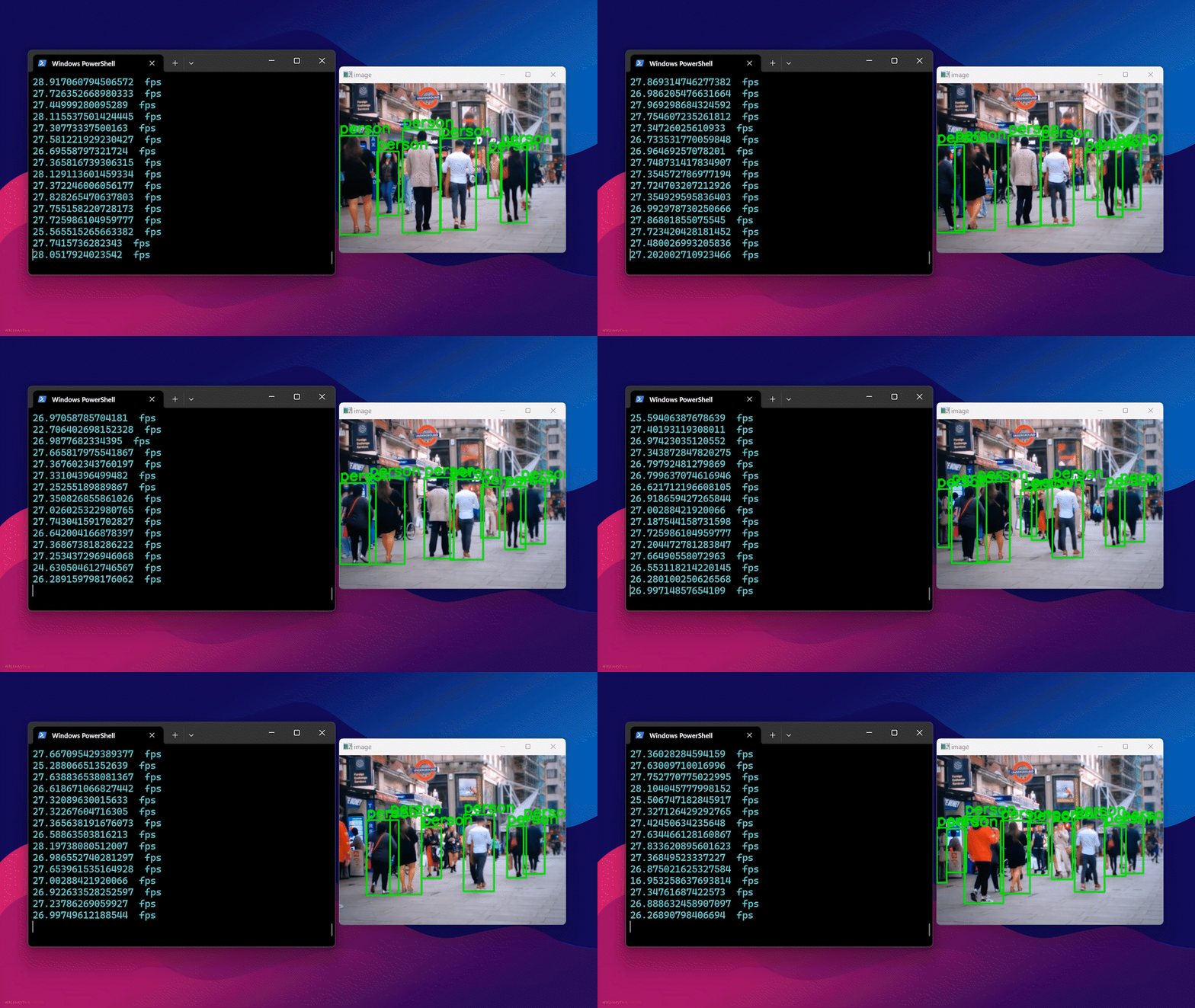
本维基指南解释了如何使用在NVIDIA Jetson设备上运行的[Roboflow](https://roboflow.com)推理服务器轻松部署AI模型。在这里,我们将使用[Roboflow Universe](https://universe.roboflow.com)选择一个已训练好的模型,将模型部署到Jetson设备上,并在实时网络摄像头流上进行推理!
[Roboflow Inference](https://github.com/roboflow/inference)是使用和部署计算机视觉模型的最简单方法,它提供了一个HTTP Roboflow API,用于运行推理。Roboflow推理支持:
- 物体检测
- 图像分割
- 图像分类
以及 CLIP 和 SAM 等基础模型。
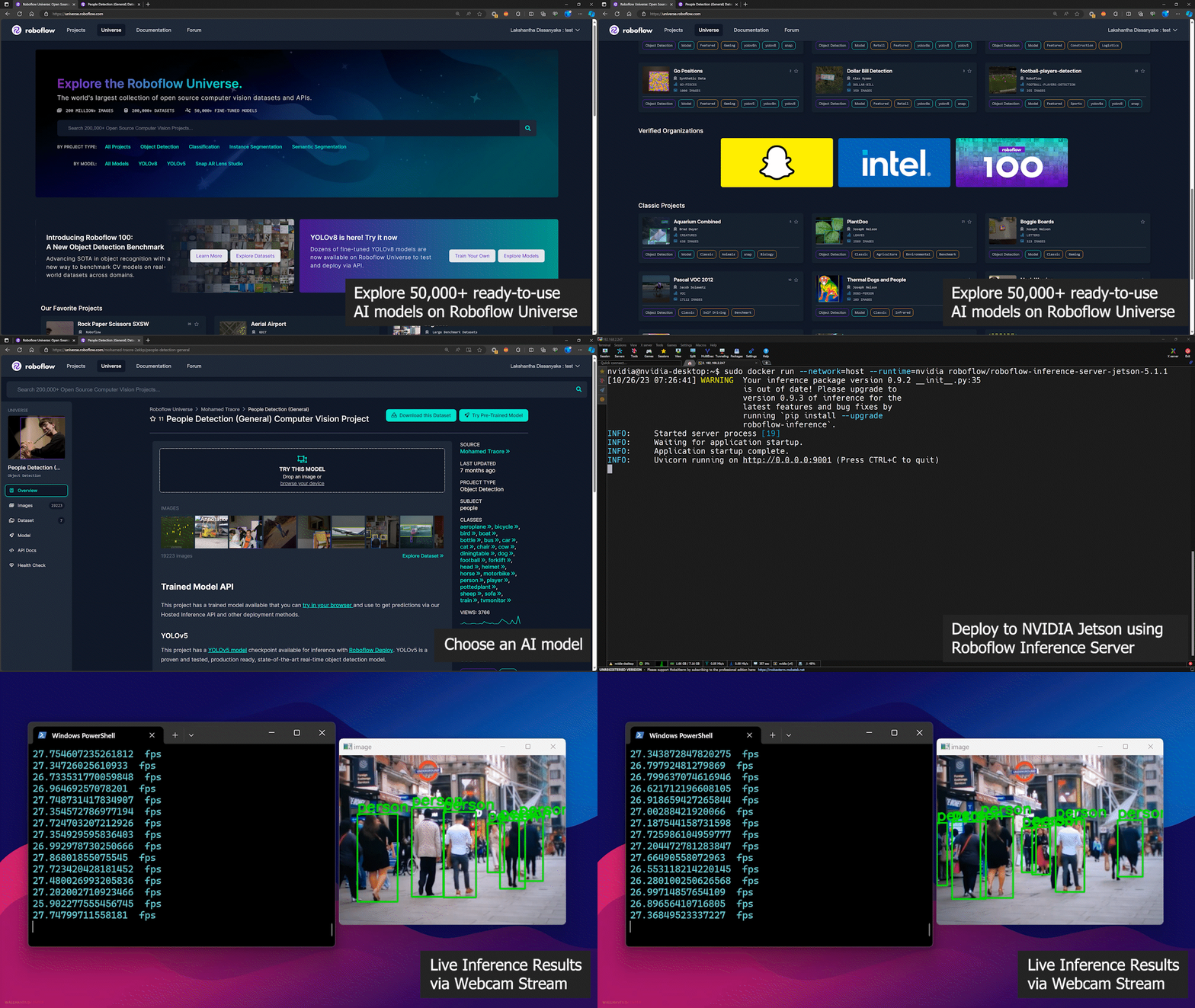
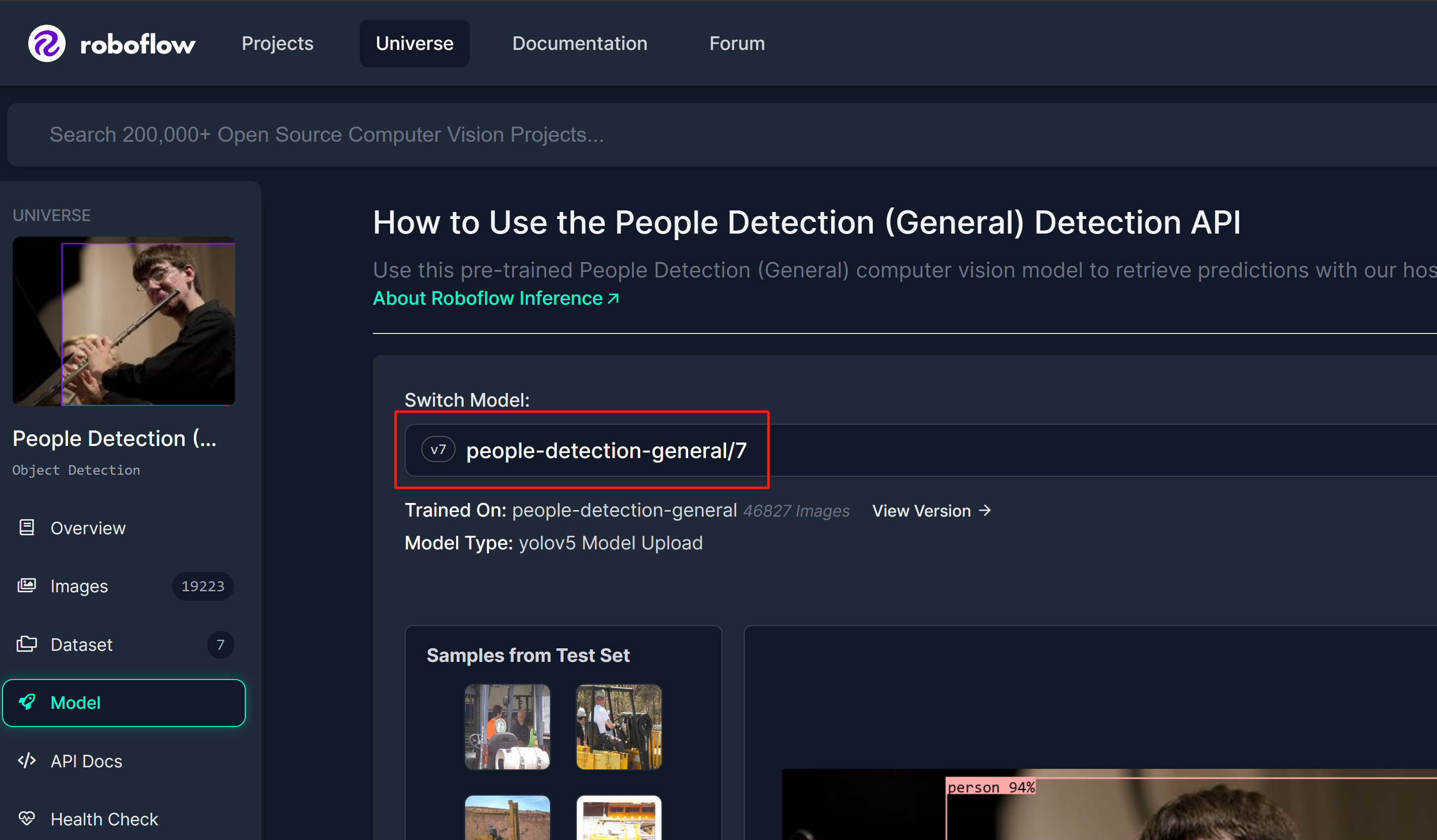
网络摄像头.py
```python
import cv2
import inference
import supervision as sv
annotator = sv.BoxAnnotator()
inference.Stream(
source="webcam",
model=" people-detection-general/7",
output_channel_order="BGR",
use_main_thread=True,
on_prediction=lambda predictions, image: (
print(predictions),
cv2.imshow(
"Prediction",
annotator.annotate(
scene=image,
detections=sv.Detections.from_roboflow(predictions)
)
),
cv2.waitKey(1)
)
)
```
最后你会看到如下结果
---
### 使用 Docker Hub
要使用此方法,只需用 Jetson L4T 刷新设备即可。这使用客户端-服务器架构,其中 Roboflow 推理服务器将在 Jetson 上的特定网络端口上运行,您将能够使用同一网络上的任何 PC 访问此推理服务器,甚至可以将 Jetson 本身用作服务器和客户端。
#### 服务器设置-Jetson
执行以下操作下载并运行 Roboflow 推理服务器 Docker 容器
```sh
sudo docker run --network=host --runtime=nvidia roboflow/roboflow-inference-server-jetson-5.1.1
```
如果看到以下输出,则表示推理服务器已成功启动
#### Client Setup - Jetson/ PC
- **步骤 1:** 安装必要的软件包
```sh
sudo apt update
sudo apt install python3-pip -y
git clone https://github.com/roboflow/roboflow-api-snippets
cd Python/webcam
pip install -r requirements.txt
```
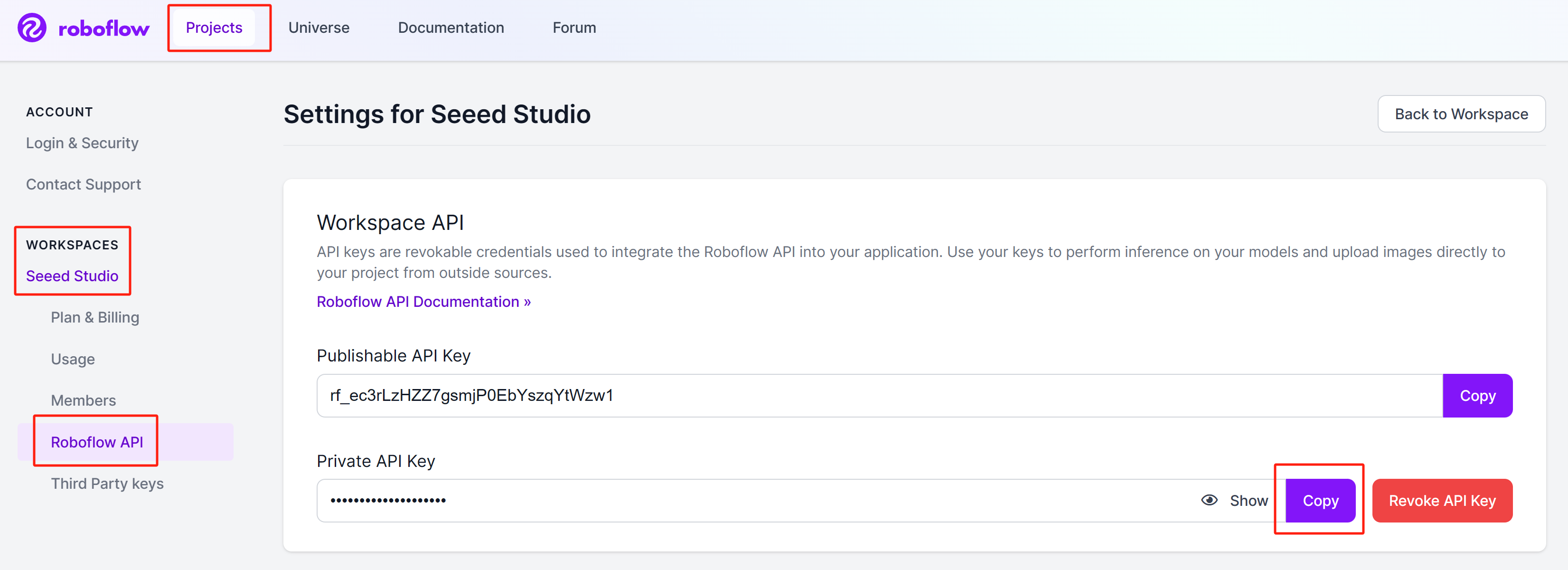
- **步骤 2:** 在同一目录中创建一个 roboflow_config.json 文件,其中包含您的 Roboflow API 密钥、模型名称。您可以参考此 GitHub 存储库中包含的示例 roboflow_config.sample.json 文件
- **步骤 3:** 在同一设备的不同终端窗口上,或与 Jetson 相同的另一台 PC 上,执行以下 Python 脚本以在网络摄像头上运行开源人物检测模型stream
```sh
python infer-simple.py
```
---
### 使用本地 Docker Build
#### 服务器设置-Jetson
要使用此方法,只需用 Jetson L4T 刷新设备即可。这使用客户端-服务器架构,其中 Roboflow 推理服务器将在 Jetson 上的特定网络端口上运行,您将能够使用同一网络上的任何 PC 访问此推理服务器,甚至可以将 Jetson 本身用作服务器和客户端。
- **步骤 1:** 克隆 Roboflow 推理服务器存储库
```sh
git clone https://github.com/roboflow/inference
```
- **步骤 2:** 进入“inference”目录,开始编译自己的Docker镜像
```sh
cd inference
sudo docker build \
-f docker/dockerfiles/Dockerfile.onnx.jetson.5.1.1 \
-t roboflow/roboflow-inference-server-jetson-5.1.1:seeed1 .
```
这里“-t”后面的文字是我们正在构建的容器的名称。你可以给它起任何名字。
- **步骤 3:** 执行以下命令检查我们编译的 Docker 镜像是否列出
```sh
sudo docker ps
```


网络摄像头.py
```python
import cv2
import base64
import requests
import time
upload_url = ("http://:9001/"
"people-detection-general/7"
"?api_key=xxxxxxxx"
"&stroke=5")
video = cv2.VideoCapture(0)
while True:
start = time.time()
ret, img = video.read()
if ret:
# Resize (while maintaining the aspect ratio) to improve speed and save bandwidth
height, width, channels = img.shape
scale = 416 / max(height, width)
img = cv2.resize(img, (round(scale * width), round(scale * height)))
# Encode image to base64 string
retval, buffer = cv2.imencode('.jpg', img)
img_str = base64.b64encode(buffer)
# Get prediction from Roboflow Infer API
resp = requests.post(upload_url, data=img_str, headers={
"Content-Type": "application/x-www-form-urlencoded"
}, stream=True)
resp = resp.json()
for bbox in resp["predictions"]:
img = cv2.rectangle(
img,
(int(bbox['x']-(bbox['width']/2)), int(bbox['y']-(bbox['height']/2))),
(int(bbox['x']+(bbox['width']/2)), int(bbox['y']+(bbox['height']/2))),
(0, 255, 0),
2)
cv2.putText(
img, f"{bbox['class']}",
(int(bbox['x']-(bbox['width']/2)), int(bbox['y']-(bbox['height']/2)-5)),
0, 0.9,
(0, 255, 0), thickness=2, lineType=cv2.LINE_AA
)
cv2.imshow('image', img)
print((1/(time.time()-start)), " fps")
if cv2.waitKey(1) == ord('q'):
break
video.release()
cv2.destroyAllWindows()
```
注意,脚本中的`upload_url`需要包含的元素有:
- Roboflow推理服务器的IP地址
- 您想要运行的模型
- Roboflow API密钥
Roboflow Universe中的模型可以选择
#### 启用 TensorRT
默认情况下,Roboflow 推理服务器使用 CUDA 运行时。但是,如果您想更改为 TensorRT 运行时以提高推理速度,您可以在文件“inference/docker/dockerfiles /Dockerfile.onnx.jetson.5.1.1”中添加以下内容并构建 Docker 映像
```sh
ENV ONNXRUNTIME_EXECUTION_PROVIDERS=TensorrtExecutionProvider
```
---
## 了解更多
Roboflow 提供了非常详细和全面的文档。因此,强烈建议您查看他们的官方文档[这里](https://docs.roboflow.com)。
## 技术支持和产品讨论
感谢您选择我们的产品!我们在此为您提供不同的支持,以确保您尽可能顺畅地使用我们的产品。我们提供多种沟通渠道,以满足不同的偏好和需求。